Troubleshooting • 2 min read
How to Troubleshoot the Dialer Microphone in Twilanswer
The dialer needs access to your system microphone to place outbound calls. Work through these checks if calls will not connect or the other side cannot hear you.
The Twilanswer dialer places calls from your browser using your computer's microphone. If Twilanswer does not have microphone access, you will not be able to place outbound calls. Work through the checks below in order.
1. Check the Microphone Permission in Your Browser
Chrome asks for microphone access the first time you use the dialer. If that prompt was dismissed or blocked, the permission stays off until you turn it back on manually.
- Open the dialer at app.twilanswer.com/dashboard/dialer.
- Click the icon to the left of the URL in the address bar.
- Make sure the Microphone toggle is enabled.
- Reload the page after changing the setting.
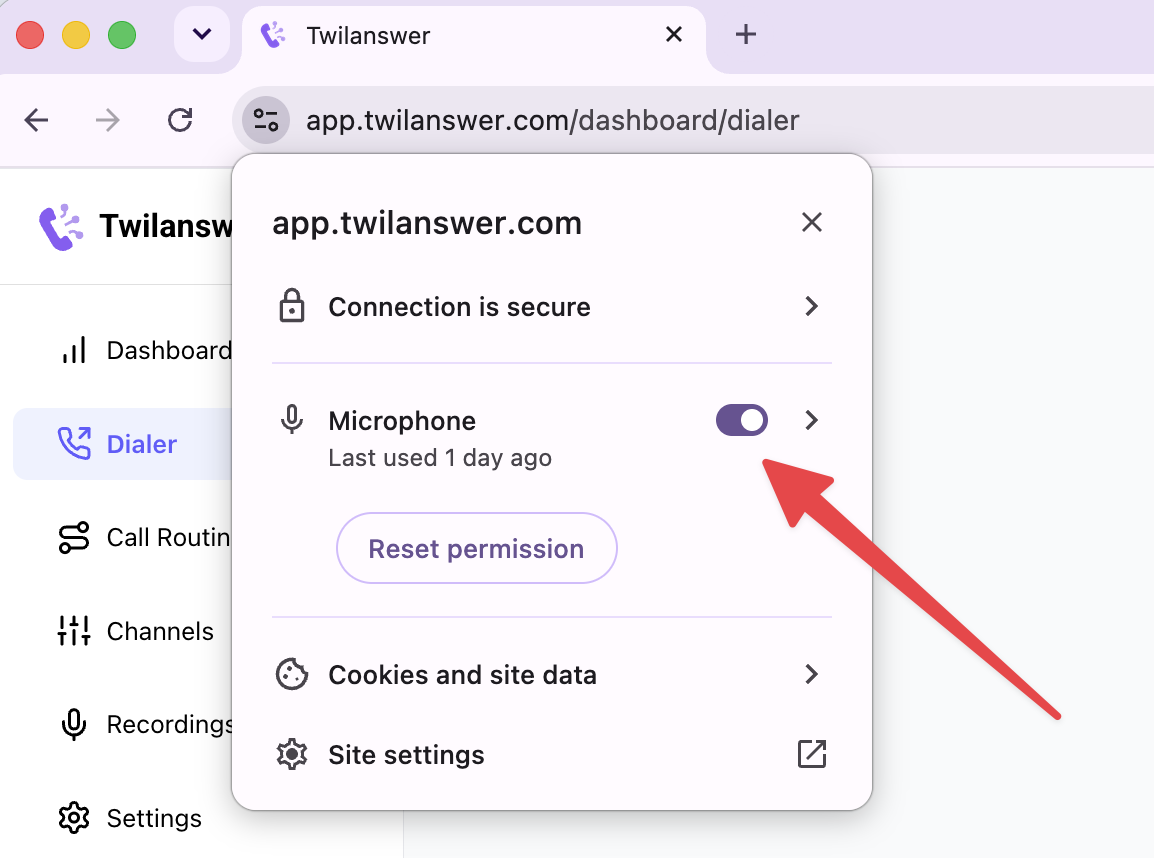
If you do not see a Microphone row at all, the browser has not been asked for access yet. Start a call, and accept the prompt when it appears.
2. Close Other Apps Using the Microphone
Close anything else that may be holding the microphone open, including Zoom, Teams, Google Meet, Discord, and any other browser tab with a live video call.
On Windows, some audio driver configurations only allow one application to hold the microphone at a time. Close the other apps, then retry the call.
3. Check Your Operating System's Microphone Settings
Even with the browser permission enabled, the operating system can block microphone access for the browser itself.
Windows
- Go to Settings → Privacy → Microphone.
- Turn on Allow apps to access your microphone.
- Confirm that Chrome appears in the list of allowed apps.
macOS
- Go to System Settings → Privacy & Security → Microphone.
- Enable the toggle for Google Chrome.
- On older versions of macOS, this is under System Preferences → Security & Privacy → Privacy → Microphone.
- macOS may ask you to quit and reopen Chrome before the change takes effect.
4. Restart the Browser
If another application recently released the microphone, Chrome does not always pick it up again straight away. Quit the browser completely, reopen it, and load the dialer again.
5. Run a Quick Microphone Test
Open onlinemictest.com in the same Chrome window and check whether the microphone registers there.
If the microphone does not work on that page either, the problem is at the system level rather than anything specific to Twilanswer. In that case, check your input device selection and hardware connection before returning to the dialer.
If you have worked through all five checks and the dialer still cannot access your microphone, get in touch with support and let us know which browser and operating system you are using.