
Call Routing • 4 min read
How to Configure Call Routes
Call routes decide what happens when a caller reaches Twilanswer. Create one with optional business hours, call actions, notifications, and connect it to Twilio.
Accessing the Call Routing Page
To add a new call route in Twilanswer, follow these steps:
- Log in to your Twilanswer account.
- From the sidebar menu, click on Call Routing.
- On the Call Routing page, click the Add Route button.
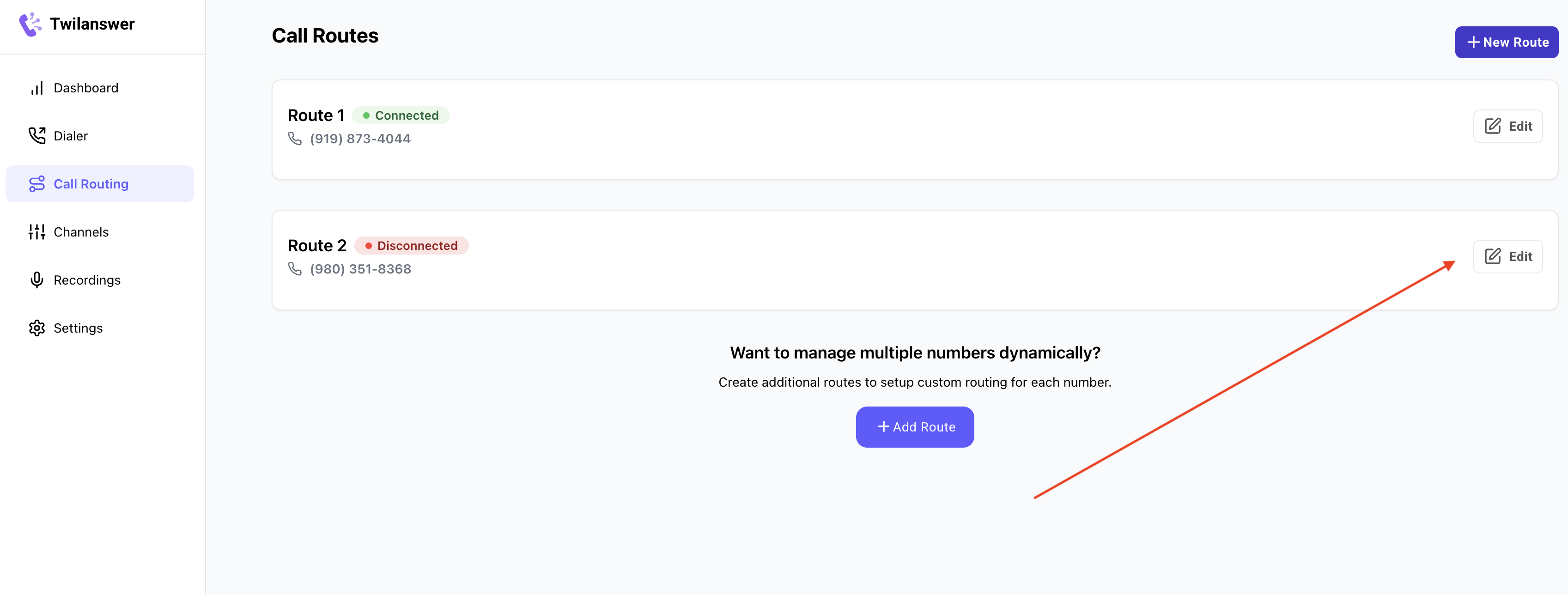
Configuring a New Call Route
When you create a new call route, you’ll need to provide the following information to set it up correctly:
1. Name Your Route
After clicking Add Route, you will see a default name for your route like “Route [number]”.
Change this to a more descriptive name, such as “Test Route” or a name that clearly indicates the routing purpose.
2. Select a Phone Number
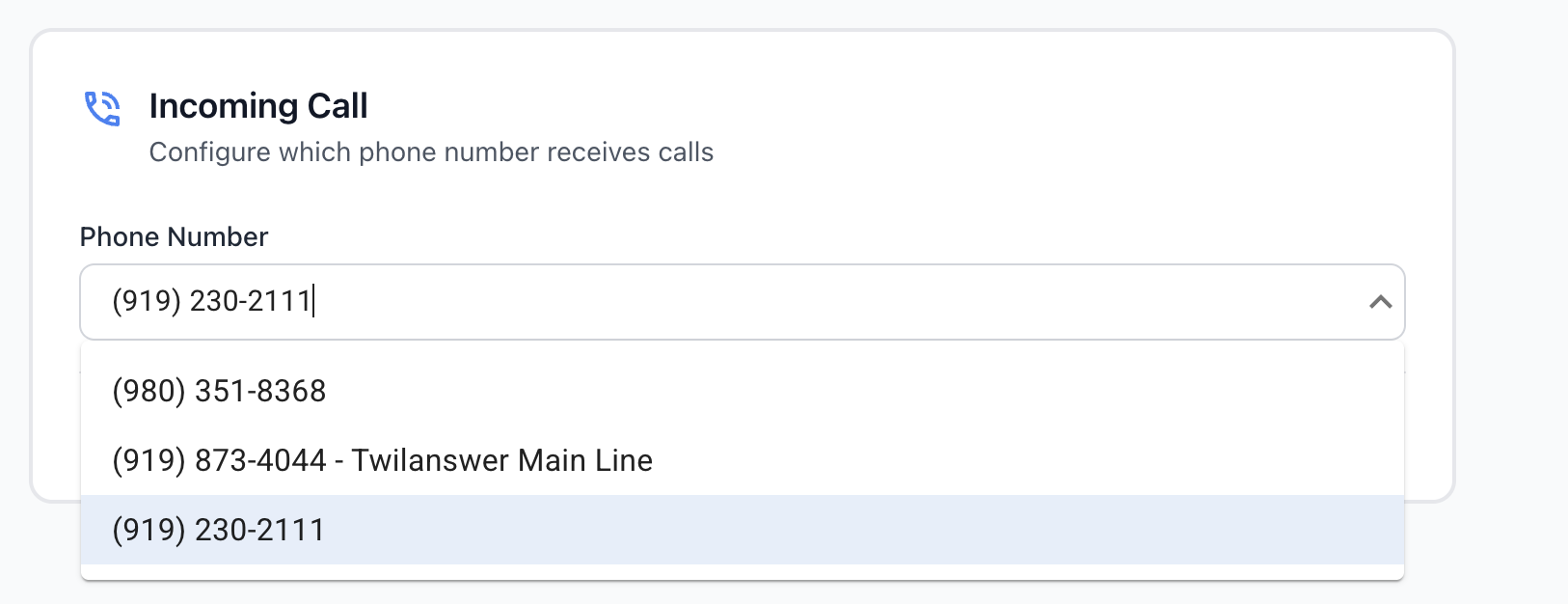
Next, you need to select the phone number that this route will be linked to:
Choose a phone number from your Twilio account. If you have questions about how to add or delete phone numbers, please refer to our articles on How to buy a Twilio Phone Number or How to Delete a Twilio Phone Number.
3. Business Hours (Day and Time Rules)
You can turn business hours on or off for the route.
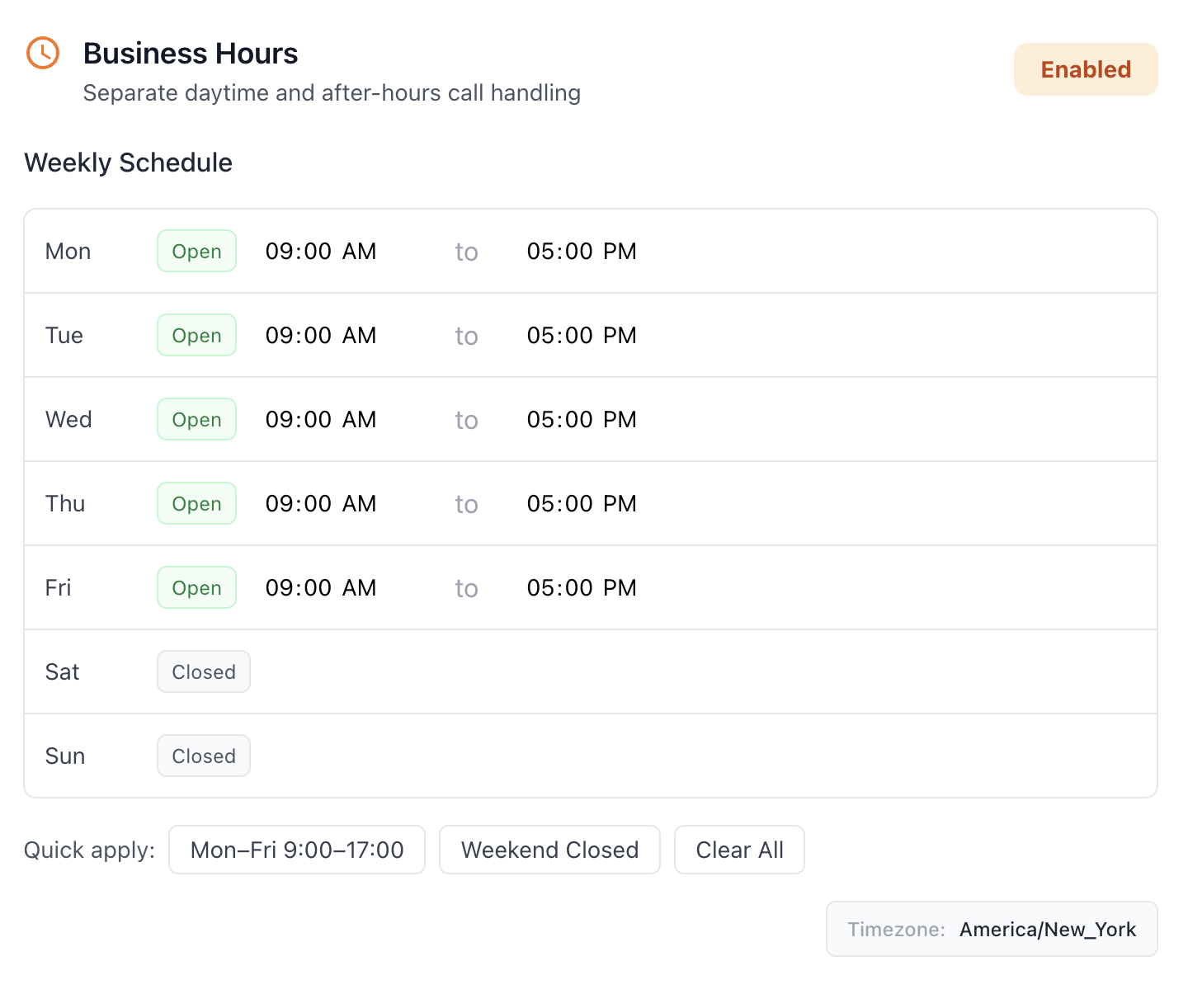
When business hours are enabled, you define your schedule (days and times). That lets you use different call actions and notifications for calls that arrive during business hours versus after hours.
When business hours are disabled, every call follows the same path—you will set one call action in the next step.
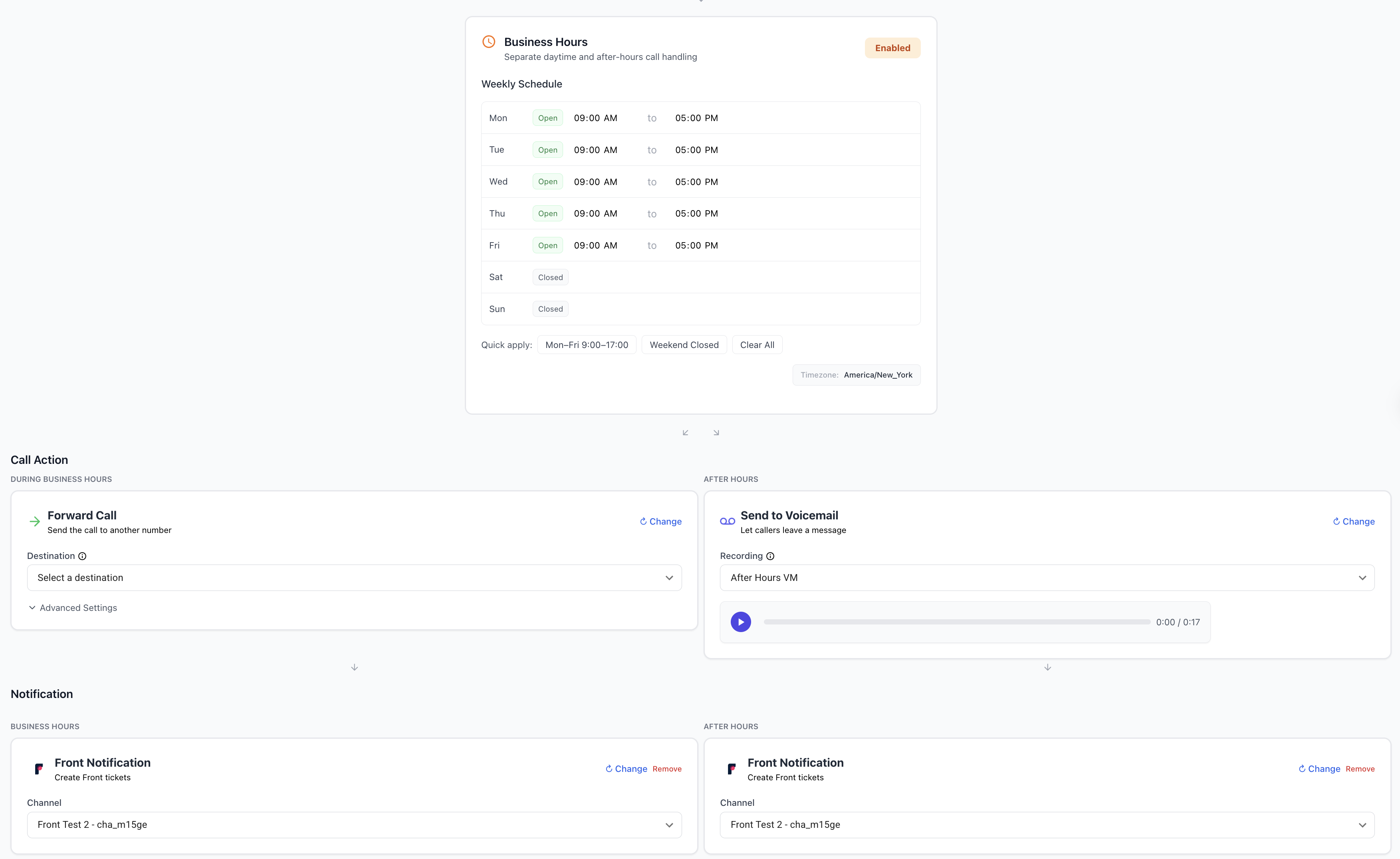
4. Call Action
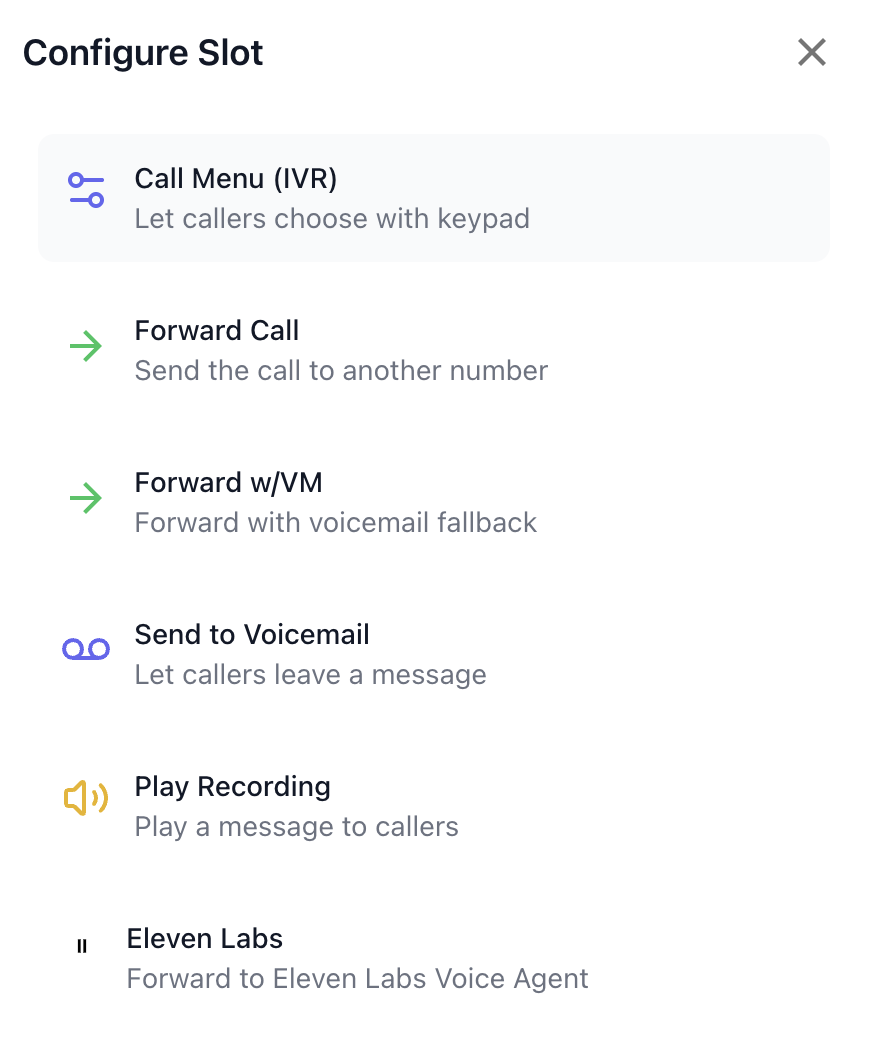
The call action is what happens when Twilanswer handles a call on this route. If business hours are on, you set a business-hours call action and an after-hours call action. If business hours are off, you set a single call action for all calls.
Depending on your needs, you can choose options such as:
- Call menu (IVR) — Plays a message, then the caller presses a key to choose an option; each option can lead to another action you configure.
- Forward call — Forwards the call to a fixed number or the contact’s assigned teammate, with optional Twilanswer voicemail if no one answers.
- Twilanswer App — Rings a teammate’s Twilanswer mobile app instead of a phone number (private beta). See How to Ring the Twilanswer App on a Call Route.
- Send voicemail — Sends the caller to voicemail: a greeting plays, then they can leave a message.
- Play recording — Plays a recording and then hangs up. The caller cannot leave a message. Useful for lines where you don’t offer phone support and don’t want voicemail.
- Eleven Labs — Forwards the call to your Eleven Labs voice agent (beta).
5. Notifications
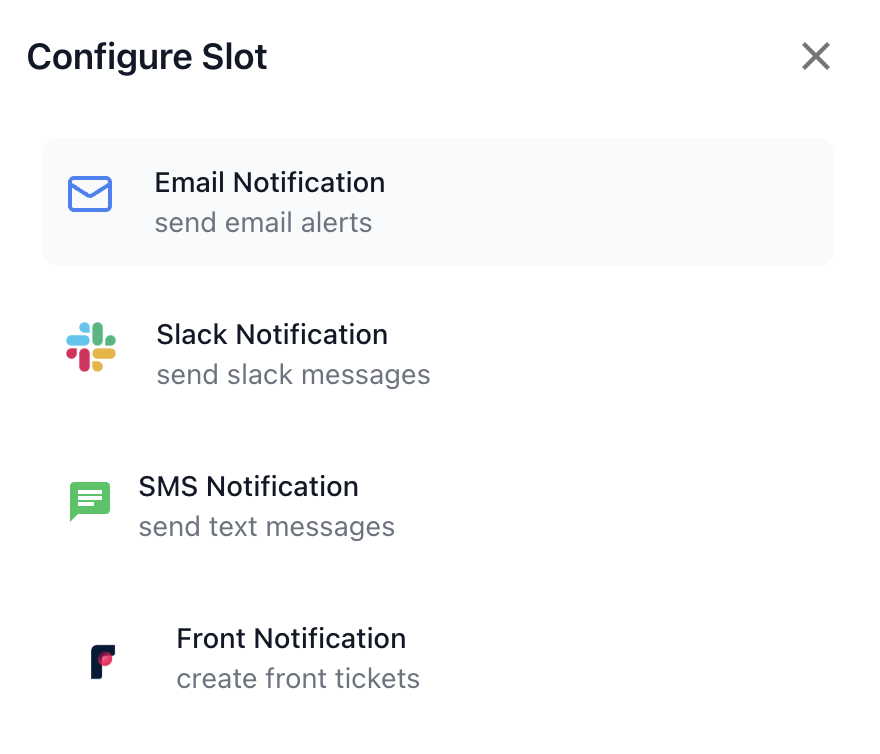
Choose how you want to be notified about calls on this route. You can use channels such as Email, SMS, Front, and Slack. For Front, choose the Basic connection (Simple Notifications) or Front Lifecycle Notifications (recording, transcript, and summary in Front). When business hours are enabled, you can align notifications with business-hours and after-hours behavior separately.
6. Finalizing the Route
After completing the configuration:
- Click the Add Route button. You will receive a success message confirming that your route has been saved and configured successfully.
7. Linking Your Route to Twilio
If you have configured your Twilio account with auto-configuration, your number should already be linked to the new route. If not, follow these steps to manually update Twilio:
- Copy the URL provided after route creation.
- Open your Twilio console, navigate to your phone numbers section, and update the configuration to point to this new route.
For further assistance with updating Twilio configurations, please refer to our article on How to Point Your Twilio Number to Your Twilanswer Route.
Conclusion
You should now have your call routing successfully configured in Twilanswer. When a caller dials the specified phone number, they will be directed according to the rules you’ve set, enhancing your call management experience. Consider revisiting your routing rules periodically to refine them further and improve caller satisfaction. For any further questions or troubleshooting needs, please refer to our support documentation or contact our support team. If you are setting business hours specifically, how to route Twilio calls by business hours walks through the same ideas from a Twilio-focused angle.