
Outbound Calling • 3 min read
How to Dial Outbound Numbers Using Twilanswer
Place outbound calls from Twilanswer with your Twilio caller ID—either in the browser or through your phone. Learn recipient, From number, and both call methods.
Dialing Outbound Numbers
The Twilanswer Dialer lets you place outbound calls through Twilio. For any outbound call, you choose the recipient (who you are calling) and the From number—one of your Twilio numbers that will appear as the caller ID.
You can complete the call in one of two ways:
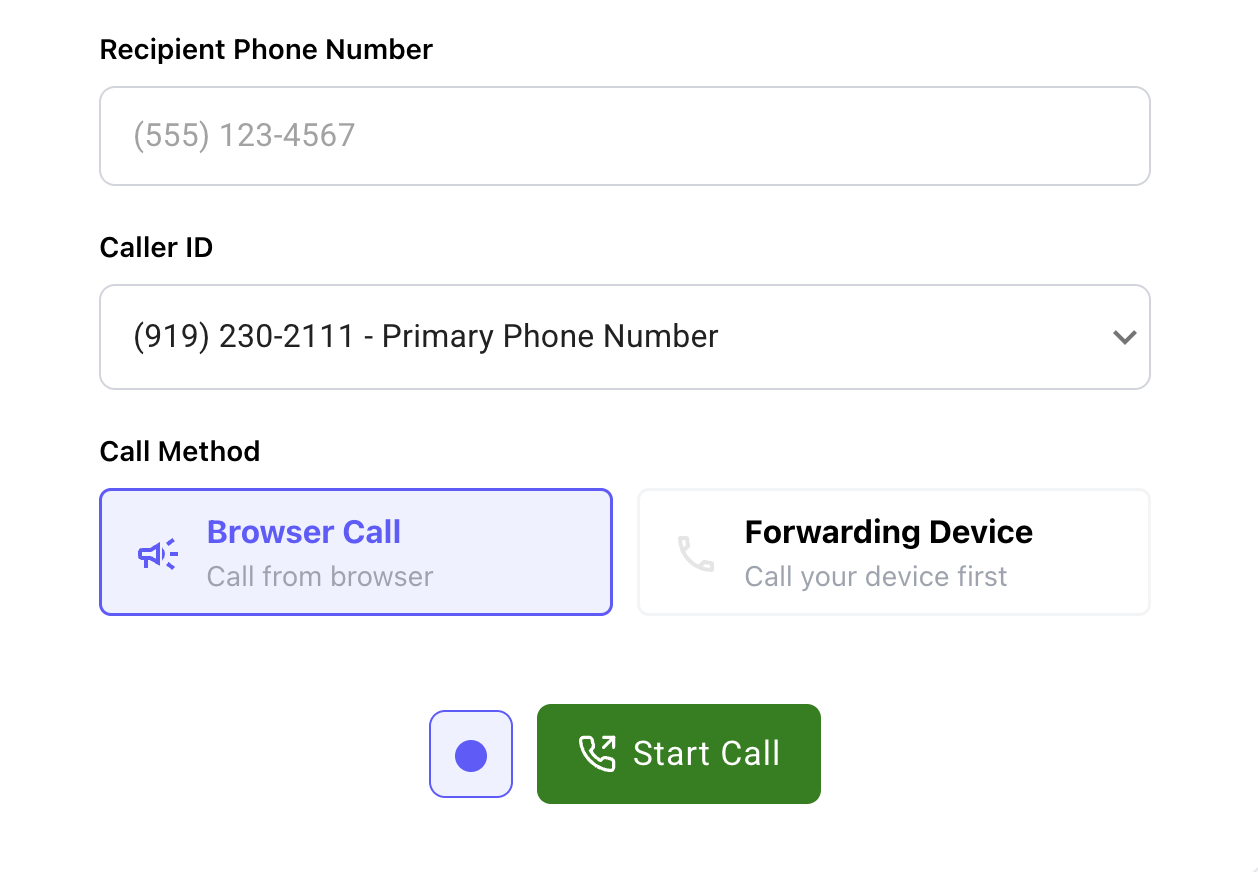
Browser call (default)
- The call runs in your browser on the computer you are using.
- You talk and listen through that computer (headset, speakers, or built-in audio).
- Best when you want to stay in Twilanswer at your desk and handle the call entirely on the machine you are logged into.
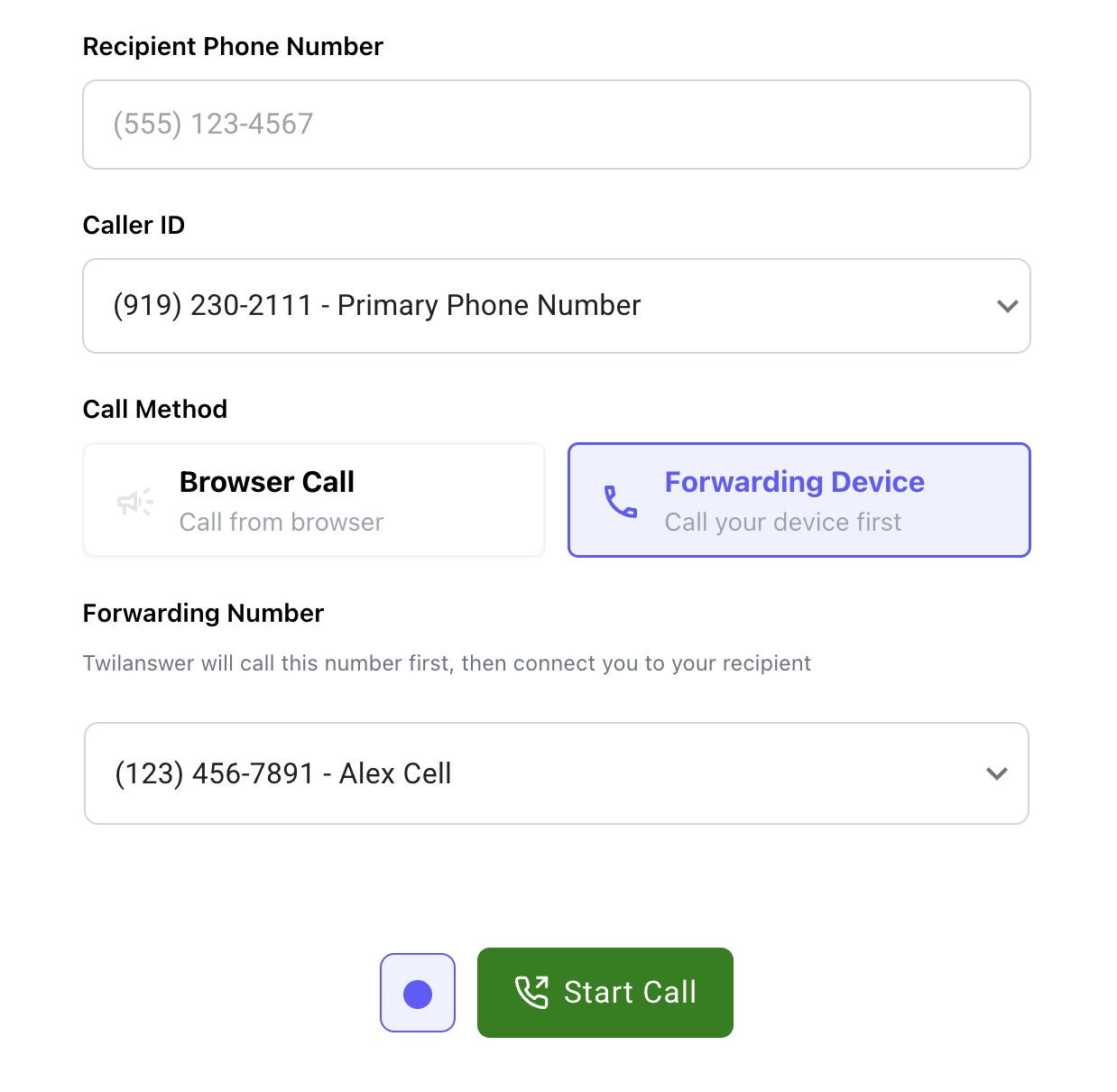
Forwarding device
- Twilanswer rings your forwarding number (for example, your cell phone or a landline) first.
- When you answer that phone, the call connects to the recipient.
- Best when you want a real handset while still showing your Twilio From number to the person you called.
- If the forwarding number does not answer, the call may not reach the recipient—check voicemail or other forwarding rules on that line.
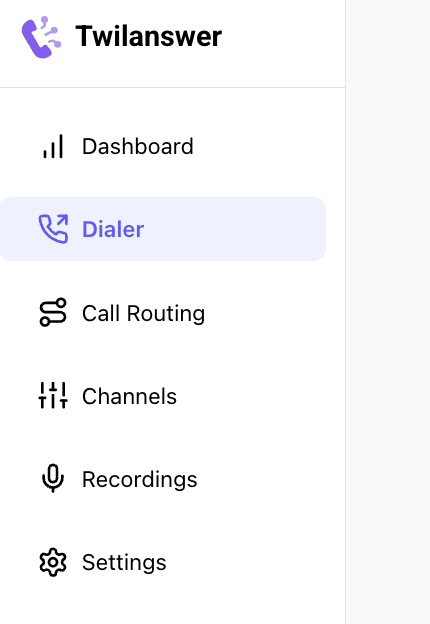
1. Access the Dialer
- Open the Twilanswer application and click Dialer in the sidebar to open the outbound dialing interface.
2. Enter the Recipient and From Number
These apply to both call methods:
-
Recipient
- Type or paste the phone number you want to call.
- Or type a contact's name, number, or company, then pick them from the suggestions. See How to Manage Contacts in Twilanswer.
-
From number (caller ID)
- This is your Twilio number shown to the recipient.
- Use the dropdown to pick any number from your Twilio account that Twilanswer exposes for outbound dialing.
- To add or remove numbers in Twilio, see How to Purchase a Twilio Phone Number and How to Delete a Twilio Phone Number.
3. Choose How to Connect the Call
Select Browser call or Forwarding device (labels may appear as your product names them). Then complete the fields that apply to that method.
Browser call
- Choose the browser call option if you want the call to run on this computer.
- Click Call (or the equivalent action) to place the call.
- Allow microphone access in the browser if prompted, and use your computer to speak with the recipient.
Forwarding device
- Choose the forwarding device option when you want to answer on a separate phone.
- Forwarding number — the phone Twilanswer will call first so you can pick up. Pick from forwarding numbers already set up in Twilanswer, or use Add a Phone Number if you need a new one. See How to Add a Forwarding Number in Twilanswer.
- Click Call to start. Twilanswer calls your forwarding number; when you answer, it connects you to the recipient.
- If the forwarding number does not answer, the call may not connect. Check voicemail or other routing on that line.
Understanding the Number Roles
- Recipient — The person you are calling.
- From number — The Twilio caller ID the recipient sees (which of your Twilio lines you are placing the call from).
- Forwarding number — Only used with the forwarding device method: the phone Twilanswer rings so you can join the call from a handset.
Choosing the right From number helps recipients recognize your business.
Conclusion
The Dialer supports efficient outbound calling with your Twilio numbers. Use browser call for an in-app, computer-based conversation, or forwarding device when you prefer to talk on your own phone while keeping your Twilio caller ID. To sync outbound dialer calls into Front with recording, transcript, and summary, see How to Set Up Front Lifecycle Notifications in Twilanswer. For a longer overview of outbound calling from a Twilio number, see how to make outbound calls from your Twilio number.