
Call Routing • 4 min read
How to Forward Calls in Twilanswer
Send inbound calls to another number with Forward Call. Use the Twilanswer Voicemail Fallback switch, then set destination, recording, caller ID, and call approval.
Forward Call sends an inbound call to a phone number, such as your mobile, a teammate, or an office line. Choose it when you configure a call route, and leave Simple Forward selected. Twilanswer Voicemail Fallback is the switch on that card: it decides what happens if that phone does not answer.
Dynamic Forward is the other tab on the same card. It sends each caller to the teammate assigned to their contact and needs the Team plan — see How to Use Dynamic Forward in Twilanswer.
Twilanswer Voicemail Fallback
Switch off
With Twilanswer Voicemail Fallback off, the call is sent to the destination number you choose (for example your mobile, a teammate, or an office line). If that phone is not answered, the call follows that phone’s normal behavior—typically the carrier’s voicemail on that line, not Twilanswer.
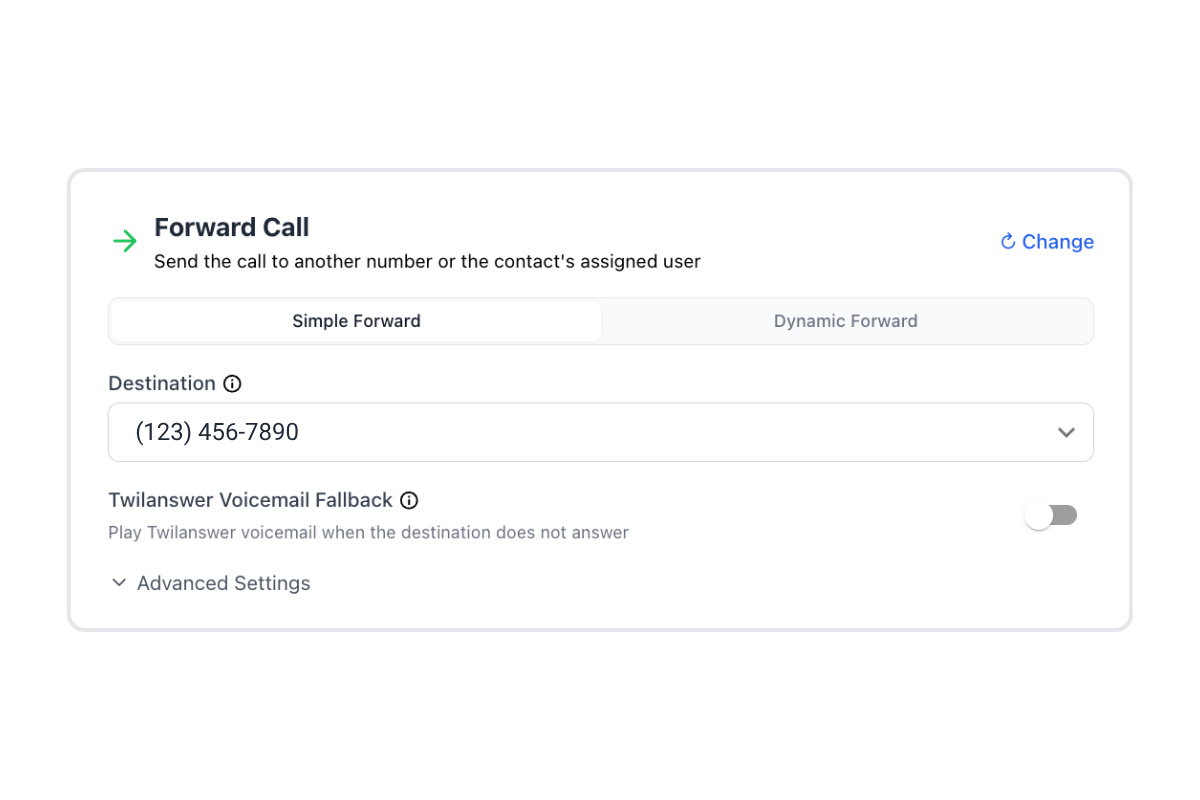
Switch on
With Twilanswer Voicemail Fallback on, the call is also sent to your destination number first. If the call is not answered in a way Twilanswer can treat as “no answer,” the call falls back to Twilanswer instead of only the phone’s mailbox. You choose a recording that plays as the voicemail greeting; the message is stored in Twilanswer and can be delivered through notification channels you use elsewhere (email, SMS, Front, Slack, and so on).
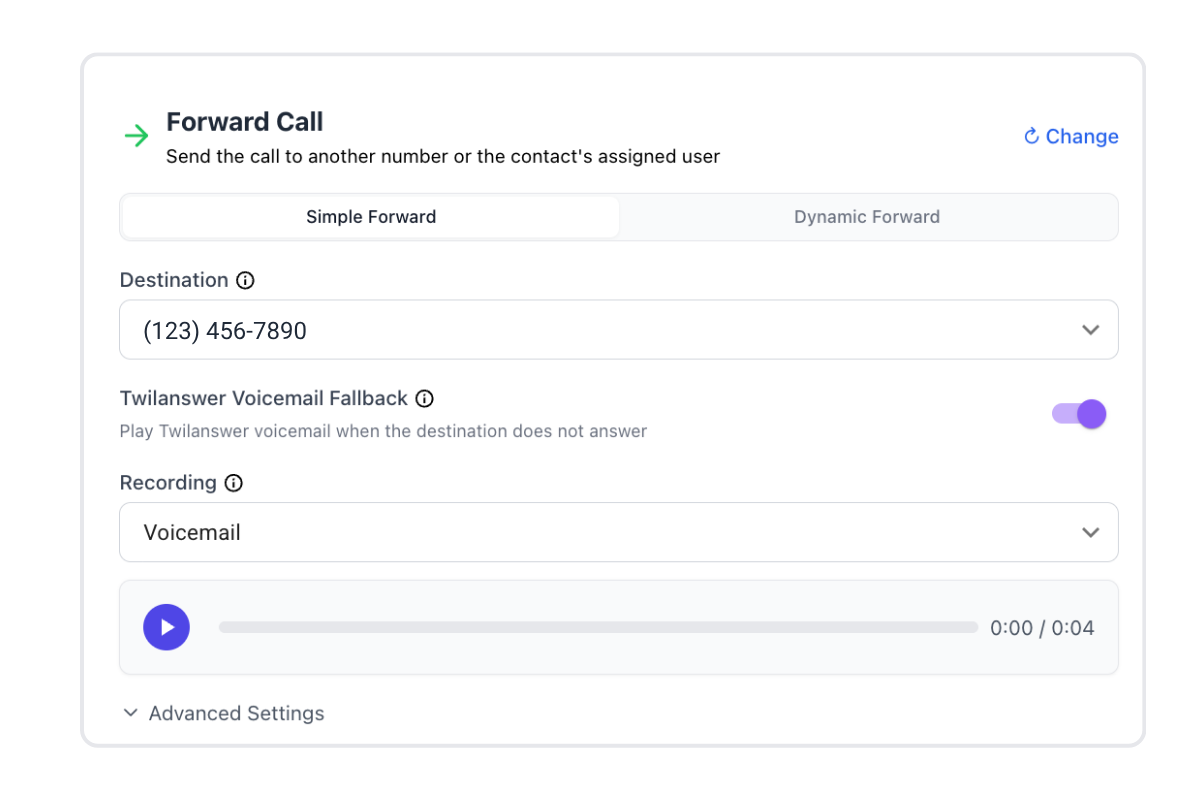
In short: fallback off → unanswered calls usually land on the destination phone’s voicemail. Fallback on → unanswered calls can be handled inside Twilanswer with your custom greeting, voicemail in Twilanswer, and routing to your channels.
What you need to configure
Destination
Set a Destination—the number where the call should ring (your phone, someone on your team, an office line, and so on).
Recording
When Twilanswer Voicemail Fallback is on, choose the Recording callers hear if the call rolls to Twilanswer voicemail. That recording should match how you want unanswered business calls to sound.
Advanced Settings
Advanced Settings holds Caller ID Setting and Call Approval.
Caller ID Setting
Caller ID Setting controls what appears on the destination phone:
- Original caller’s number — Useful when you want to see who is calling, especially if that number is already in your phone contacts.
- Show System Number — On a route, this shows your Twilio number. Useful when you want an obvious signal that the call is coming through your work line, so you can tell business calls apart on a personal device. Inside a call menu, the same option is labeled Show Twilio Line Number.
Which option fits best is up to you and how your team works.
Call Approval
Call Approval is available when Twilanswer Voicemail Fallback is on. When it is enabled, answering the forwarded call does not connect you immediately—you (or the person at the destination) must press a key (for example 1) to accept the call. When it is disabled, the call connects as soon as the destination answers.
Why we generally recommend call approval
Call approval helps Twilanswer manage the handoff between the carrier and Twilanswer’s voicemail fallback:
- On many mobile networks, if a call is rejected or declined very early, the carrier may send the caller to your personal voicemail before Twilanswer can take the call back. Call approval gives Twilanswer a clearer path to reclaim the call for Twilanswer voicemail when you do not actually take the business call.
- If you don’t want to take the call, you can not press 1 to connect, end the call, or use the other keypad option your flow offers so the caller goes straight to Twilanswer voicemail instead of you taking the live call.
When you might turn it off
Some teams prefer immediate connect with no extra step (for example on a dedicated desk phone where rejection is rare). That can be easier for the callee, but you should understand the tradeoff above, especially on mobile phones.
Use How to Configure Call Routes for the full route workflow (hours, actions, notifications). To add audio used in these actions, see How to Create a Live Recording in Twilanswer and How to Upload a Recording in Twilanswer. The Dynamic Forward tab on this card is covered in How to Use Dynamic Forward in Twilanswer. For a broader walkthrough of Twilio call forwarding options, see how to set up Twilio call forwarding.