
Account Settings • 2 min read
How to Add Users to Your Twilanswer Organization
Invite teammates on the Team or Custom plan: roles, pending and active status, and limits. Solo does not support multiple users—upgrade to add users.
!
Plan: Multi-user access is available on the Team or Custom plan (including trials that include those features). The Solo plan is for a single user only—multi-user support is not available for organizations on Solo. Upgrade to a plan that supports multiple users before inviting others.
Steps to Add a User
-
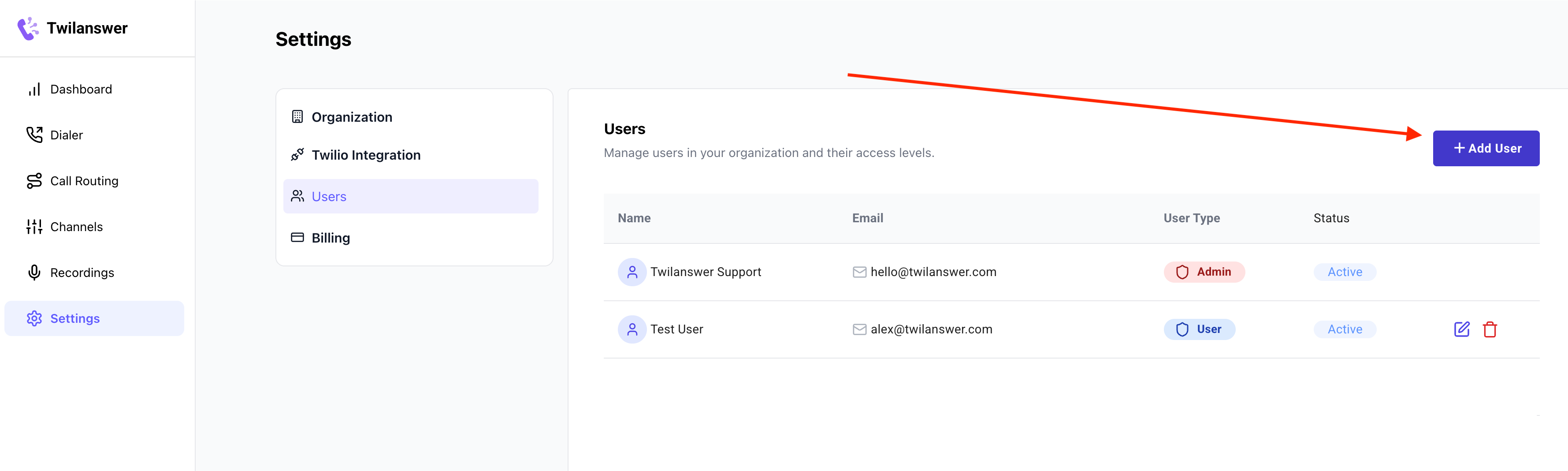
Navigate to the Users Page
- Log in to Twilanswer.
- Go to Settings > Users.
- Click “Add User” in the top-right corner.
-
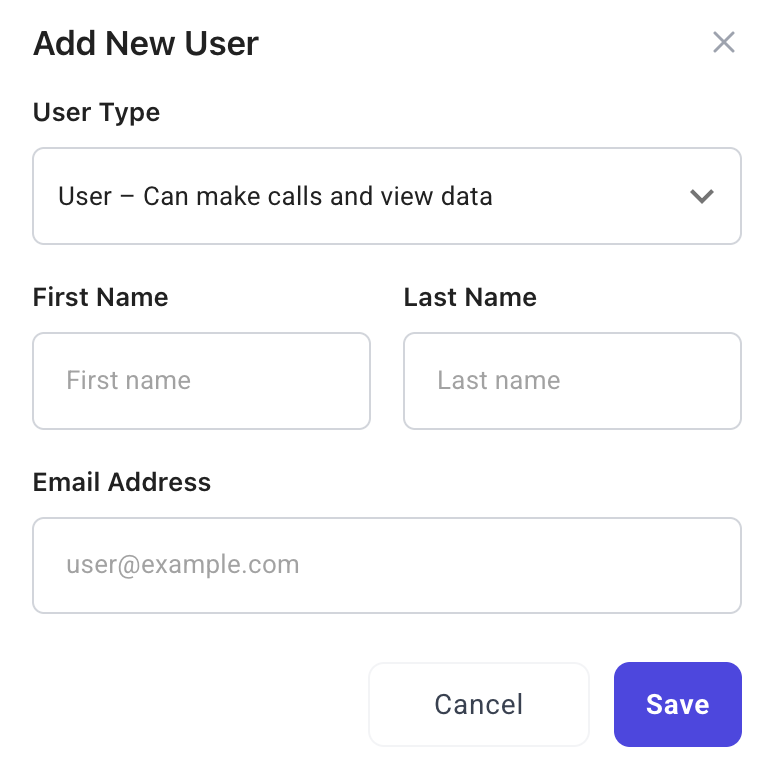
Select the User Role
- Choose the appropriate role for the new user:
- Admin: Full access to edit organization settings and add/remove other users (except the owner).
- User: Can access the main features of Twilanswer (calls, call routes, outbound dialer, channels, recordings) but cannot update settings.
- Owner: The primary owner of the Twilanswer account, with full control over adding/removing users and transferring ownership.
- Choose the appropriate role for the new user:
-
Invite the User
- Enter the new user’s email address and select their role.
- Click “Send Invite” to send an invitation to the user.
- The user will receive an email with instructions to join your Twilanswer organization.
User Status
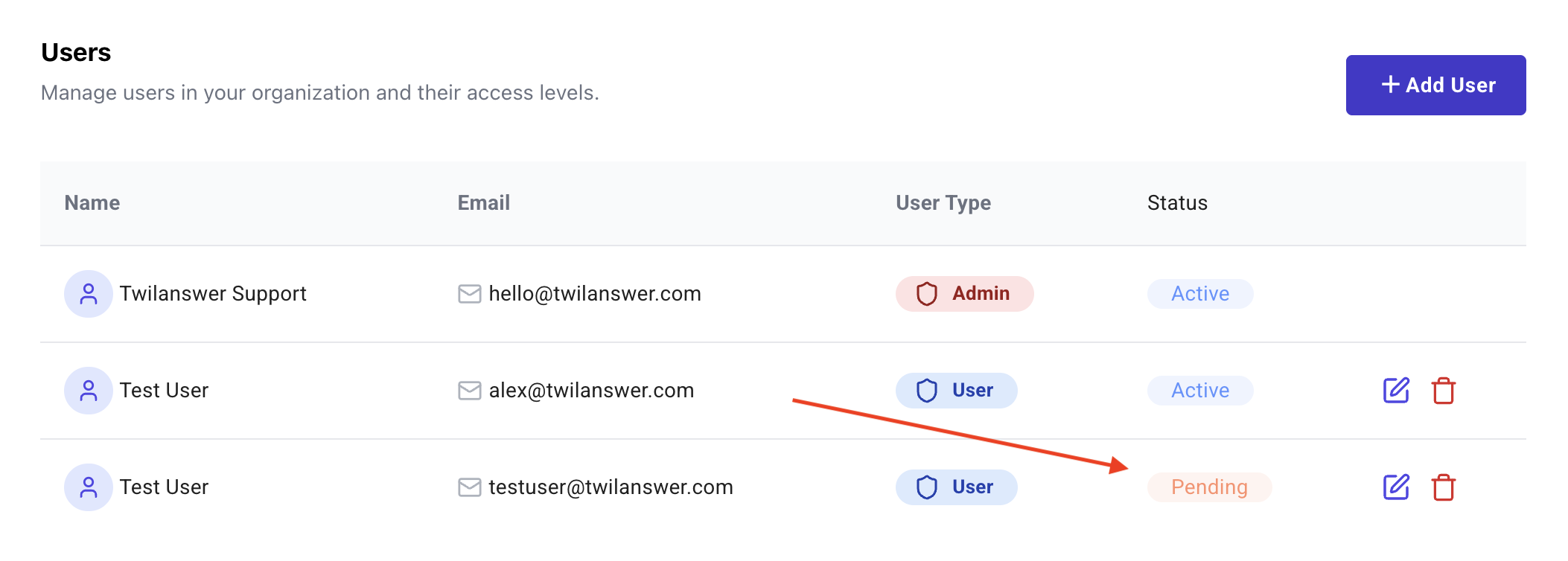
- Once invited, a user’s status will be Pending until they accept the invitation.
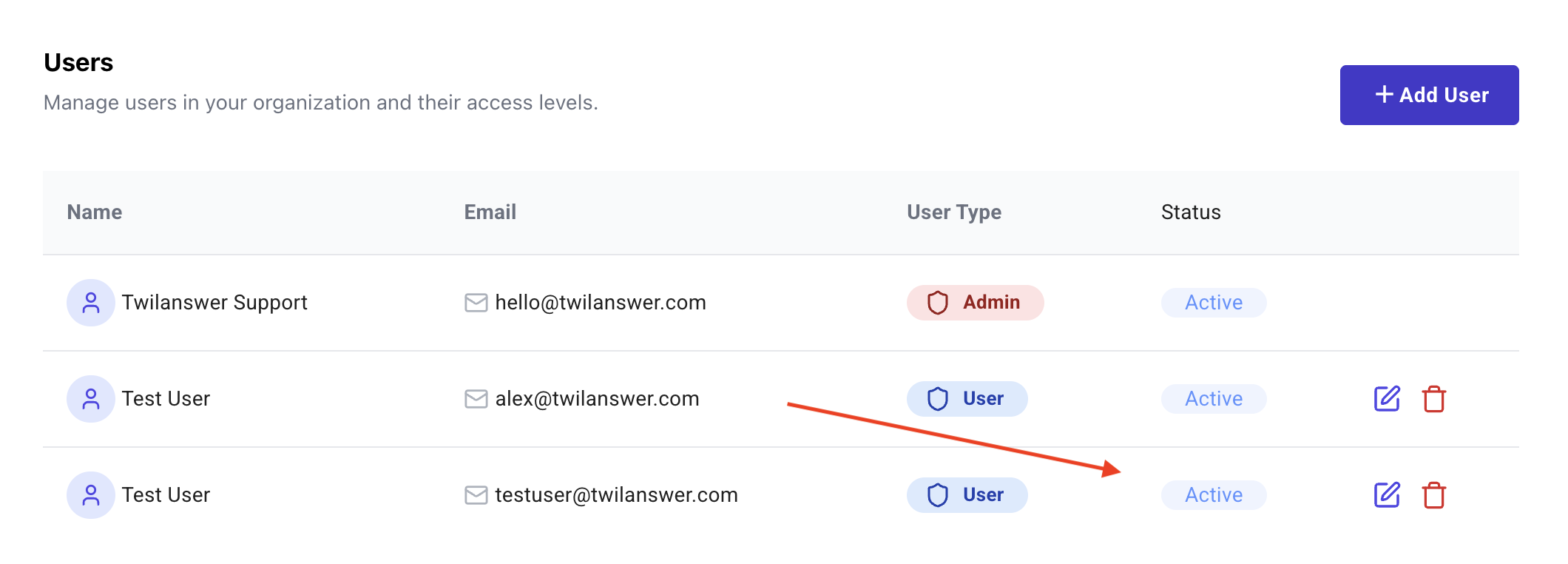
- Once accepted, the user’s status will change to Active.
Important Notes
- Each organization is limited to 10 users. If you need more, please contact support at hello@twilanswer.com.
- Only owners and admins can add users to an organization.
- Users can only have one role at a time. If a role change is needed, an admin or owner must update their access level.
- Each user can have a forwarding number. That number is used when a route uses Dynamic Forward to send inbound calls to the teammate assigned to a contact.