
Channels and Integrations • 1 min read
How to Add an SMS Notification Channel in Twilanswer
An SMS notification channel sends call alerts by text. Learn how to create it, verify the number, and enable it for call routes.
Steps to Add an SMS Channel
-
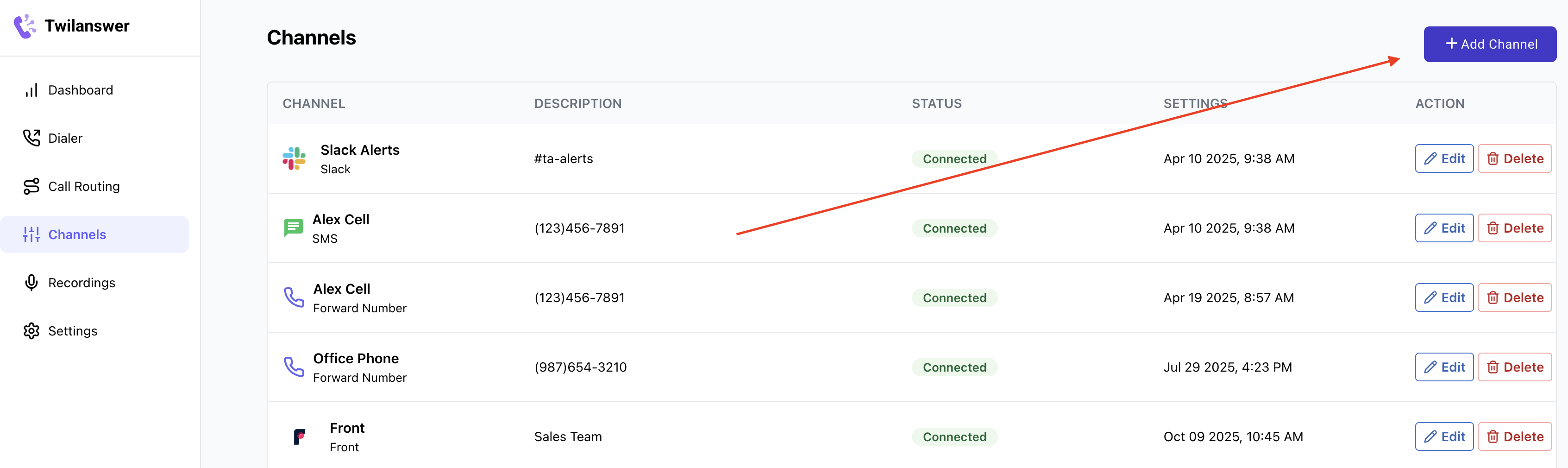
Navigate to the Channels Page
- Select the “Channels” option from the sidebar.
- Click “Add Channel” in the top-right corner.
-
Choose SMS as the Channel Type
- A popup window will appear.
- Under Channel Type, select “SMS”.
-
Enter SMS Details
- Provide a nickname to help you remember this SMS channel.
- Type in the phone number where you want to receive notifications.
- Click “Verify” to initiate the verification process.

-
Verify Your SMS Channel
- You will receive a text message with a verification code.
- Enter the code within 60 seconds before it expires.
- Click “Save” once the code is successfully entered.

-
Confirm Your SMS Channel is Active
- You should see a success message confirming the SMS channel has been added.
- Navigate back to the Channels List to verify that the new SMS channel appears with a status = Active.

Using Your SMS Channel in Call Routes
Now that your SMS channel is active, you can select it when configuring notifications in your Call Routes. For more information, refer to How to Configure a Twilio Call Route in Twilanswer.