
Channels and Integrations • 2 min read
How to Set Up the Basic Front Integration in Twilanswer
The Basic Front connection (Simple Notifications) sends call alerts to your Front inbox. Learn how to add the channel, configure it, and verify the integration.
This article covers the Basic Front connection. In the product, that is Simple Notifications: a standard notification with call details and a link to the call for incoming calls and voicemails.
For a richer inbox experience—recording playback, a transcript, and a summary inside Front—use Front Voice Lifecycle Notifications instead. See How to Set Up Front Lifecycle Notifications in Twilanswer. You can choose the notification type when you create a Front channel or when you edit an existing one.
Steps to Set Up the Basic Front Integration
-
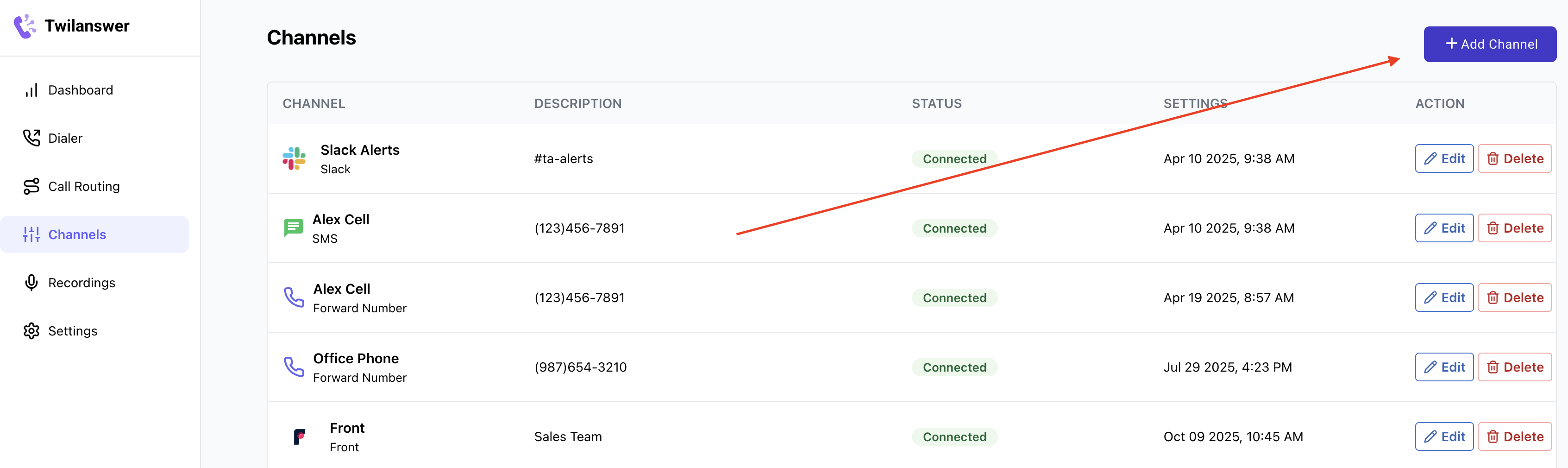
Navigate to the Channels Page in Twilanswer
- Go to the Twilanswer dashboard.
- Select “Channels” from the sidebar.
- Click “Add Channel” in the top-right corner.
-
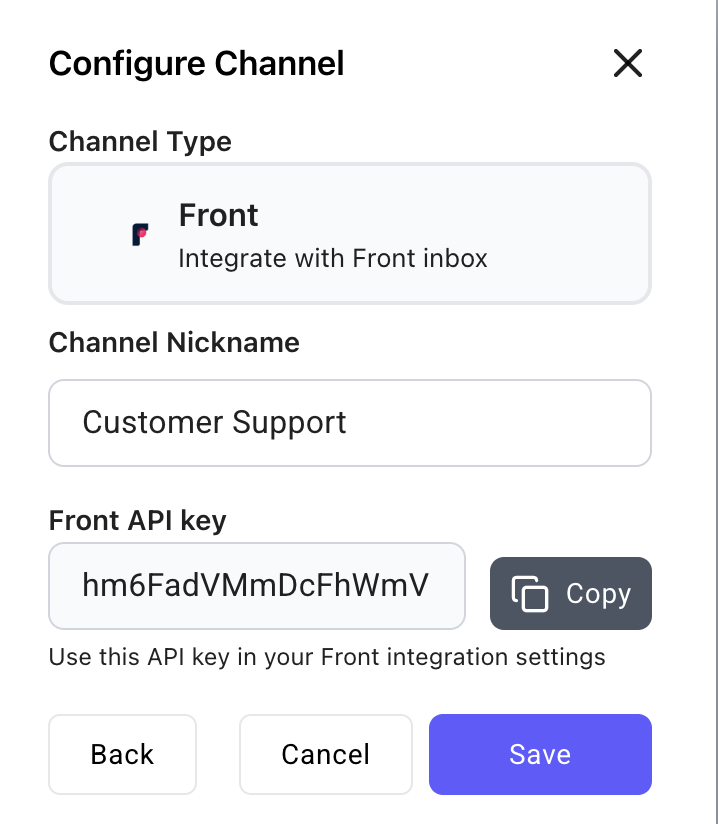
Enter Front Integration Details
- Under Channel Type, select “Front”.
- Enter a nickname to help you identify the Front account or channel you’re setting up.
- Under Notification type, choose Simple Notifications (the Basic connection). To use Front Voice Lifecycle Notifications instead, see How to Set Up Front Lifecycle Notifications in Twilanswer.
- Copy the API Key—you’ll need this later in Front.
- Click “Save” before proceeding to Front.
-
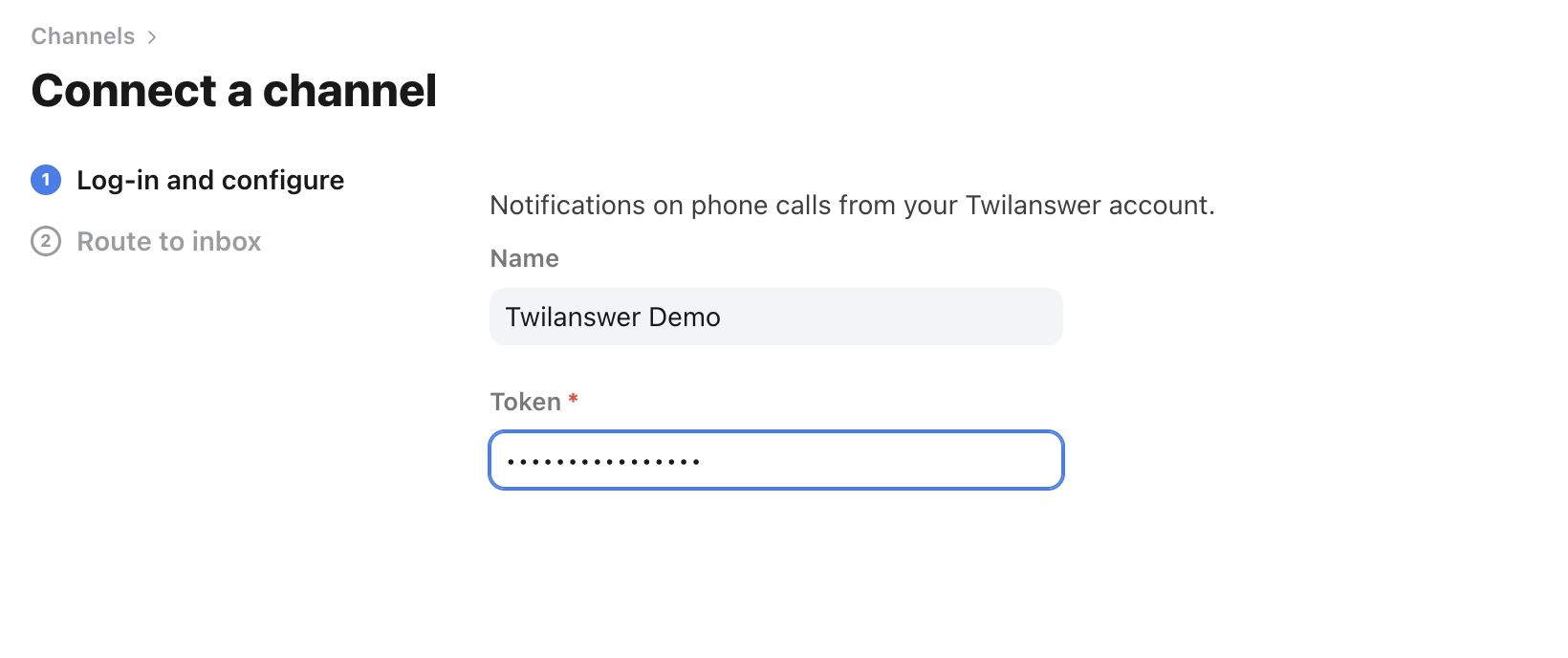
Set Up Twilanswer in Front
- Go to Front App.
- Navigate to Settings > Channels > Add Channel.
- Select “Twilanswer” as the integration.
- Paste the API Key you copied from Twilanswer.
-
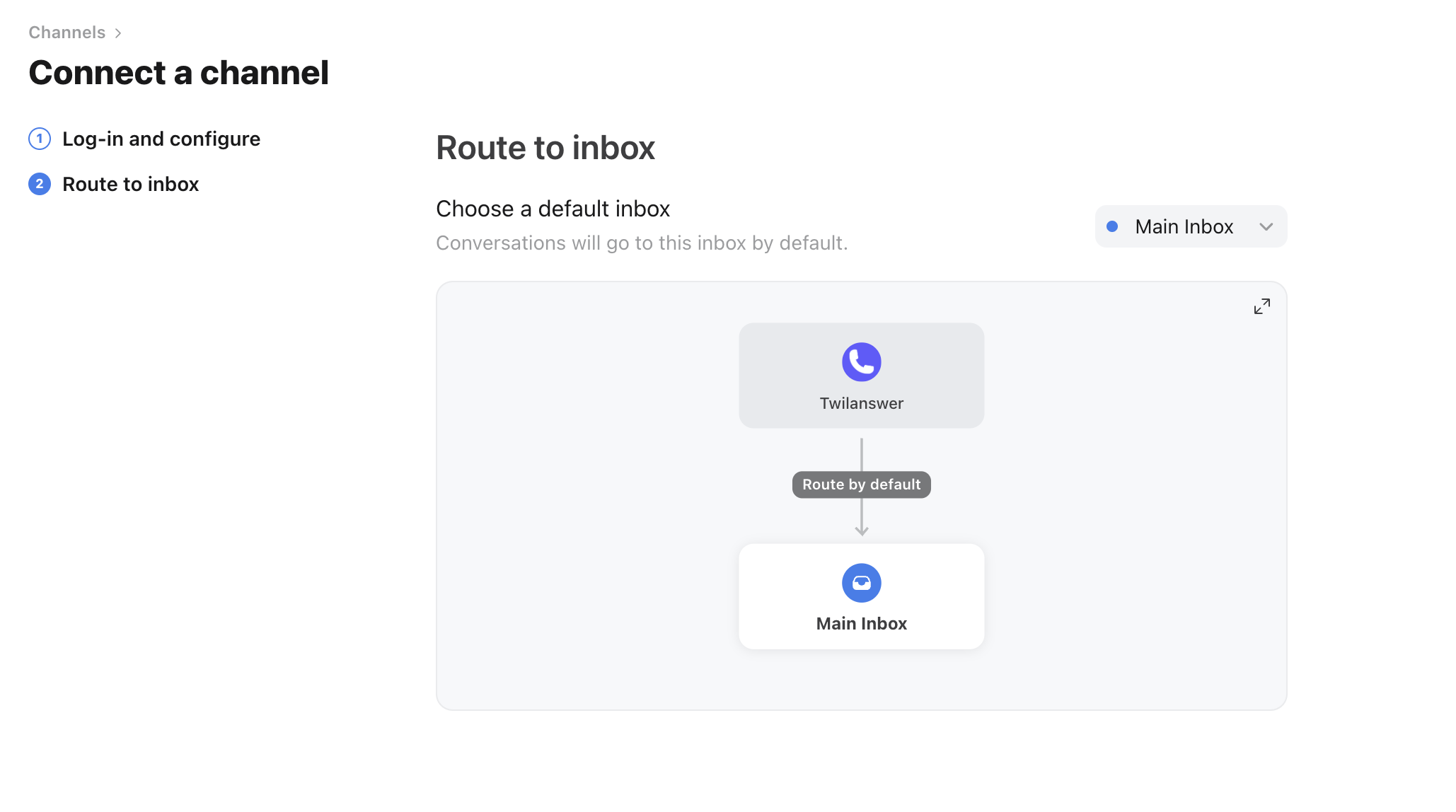
Configure Routing in Front
- Select the Inbox where you want Twilanswer call notifications to be routed.
- Click “Continue” to finalize the setup.
- You should see a success message in Front.
-
Verify the Integration in Twilanswer
- Go back to Twilanswer and reload the page.
- Your Front integration status should now change from Pending to Active.
- If you don’t see the integration active, ensure you clicked Save in Twilanswer before setting up in Front.

Troubleshooting & Support
– If the integration fails, double-check that you saved the API Key in Twilanswer before navigating to Front.
Once completed, your Twilanswer call notifications will now be routed into Front, streamlining your SMS and call management! Refer to How to Configure Call Routes for more information.
To sync recordings, transcripts, and summaries into Front—and to sync outbound dialer calls—use Front Lifecycle Notifications instead of Simple Notifications.
To import Front contacts into Twilanswer, use Contact sync on the Contacts page. That setup is separate from this notification channel. See How to Set Up a Contact Sync in Twilanswer.